
Configuration & Features
Features
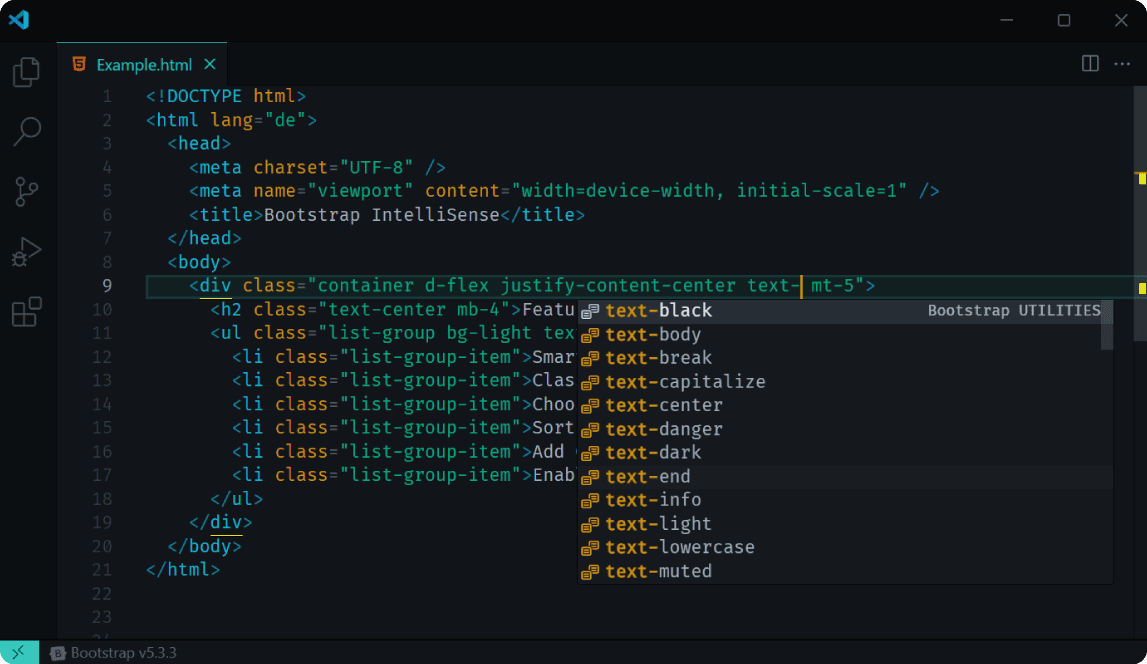
Smart Autocomplete
Get intelligent Bootstrap class suggestions as you type. Completion is always active while the extension is enabled (enable: true); there are no separate showSuggestions or autoComplete settings.
TIP
Press Ctrl+Space (or Cmd+Space on macOS) to manually trigger autocomplete.
Color Previews
Color utility classes (for example bg-primary, text-black-50) show color swatches in three places:
- Inline in the editor — a small color box appears directly to the left of each color class name while you edit. Toggle via the Status Bar menu ("Enable/Disable color preview") or the
enableColorPreviewsetting (enabled by default). - In autocomplete — pick the right color at a glance from the suggestion list.
- On hover — a swatch and hex code appear above the CSS rule when you hover a class.
Transparent or semi-transparent colors (for example text-black-50) resolve to 8-digit hex codes (#RRGGBBAA) with the correct alpha in all swatches and hover previews. Swatches are shown only for actual color utilities — not for non-color component classes such as nav-link, nav-item, navbar-brand, or active.
Bootstrap Class Sorting
Sort Bootstrap classes in the canonical order: Layout → Spacing → Components → Utilities.
- Run "Bootstrap IntelliSense: Sort Classes in Current File" from the Command Palette (
Ctrl+Shift+P). - Enable automatic sorting on save with
sortOnSave, or toggle it from the Status Bar menu ("Enable/Disable sort on save").
Changing only sortOnSave does not reload the extension providers.
CSS Hover Preview
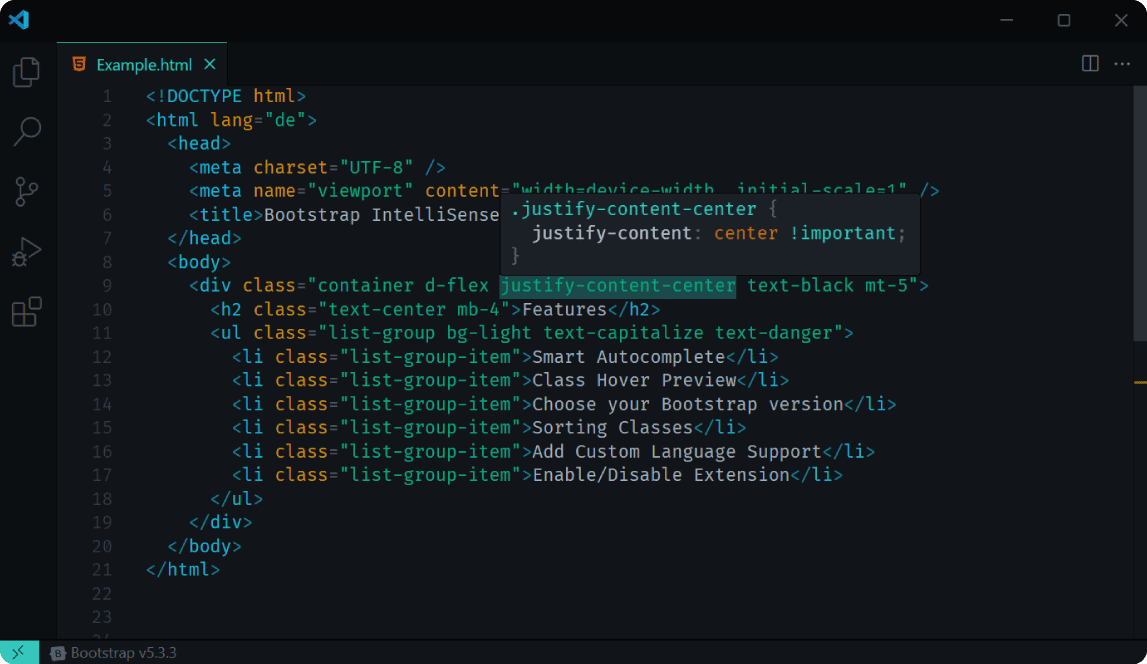
Hover over any Bootstrap class to see its CSS properties. For color-related classes, a color swatch and the hex code are shown above the rule.
TIP
Hover can be toggled independently of autocomplete via the Status Bar menu ("Enable/Disable hover") or the enableHover setting.
Broad Class-Attribute Support
Class names are detected across a wide range of frameworks and syntaxes, both for autocomplete and hover:
- Standard attributes:
class,className - Framework bindings:
:class,v-bind:class,[ngClass],[class], Svelteclass:directives - Class helper calls such as
cn(),clsx(),classNames(),twMerge()andcva()(including all arguments incn()/clsx()calls) - Multi-line class attributes are fully supported for autocomplete, inline color swatches, hover preview, and class sorting
- Improved detection avoids false positives (for example
data-classattributes and JS string literals outside class context)
Configuration
Status Bar Menu
Click the Bootstrap version button in the Status Bar to open the menu:
Bootstrap vX.X.XMenu options:
- Select Bootstrap version
- From local files for offline use
- Add language support
- Enable/Disable completion
- Enable/Disable hover
- Enable/Disable color preview
- Enable/Disable sort on save
- Reload / Clear Class Cache
Select Bootstrap Version
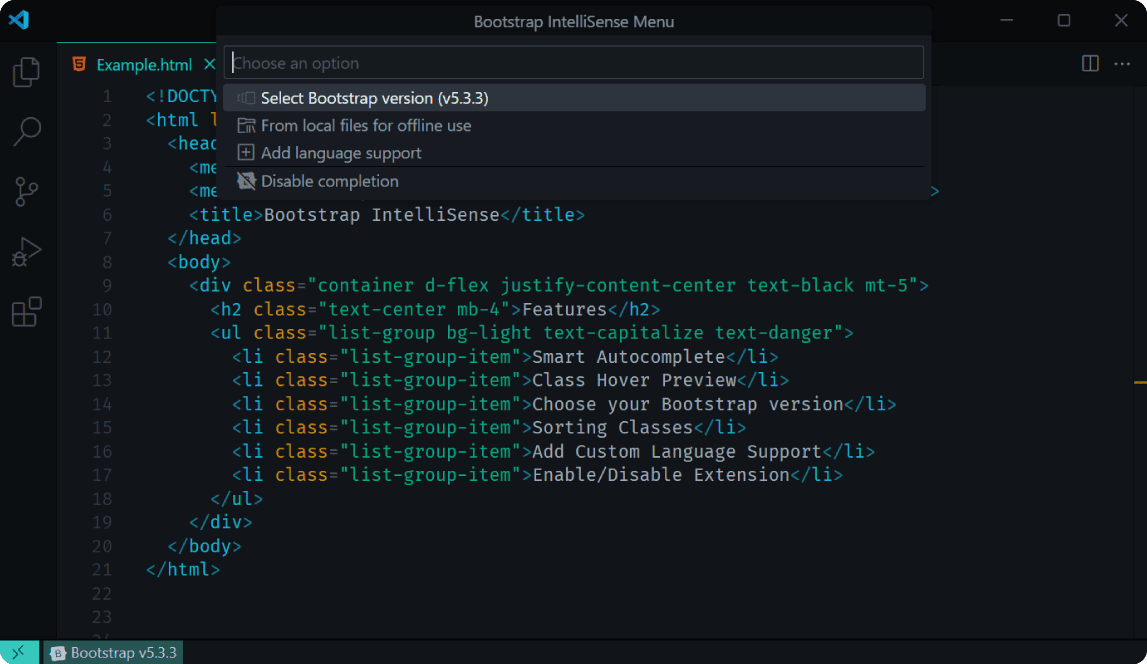
- Click Status Bar button
- Select "Select Bootstrap version"
- Choose version (Bootstrap 5, 4, or 3)
Use Local CSS File
- Click Status Bar button
- Select "From local files for offline use"
- Browse and select your CSS file
Add Language Support
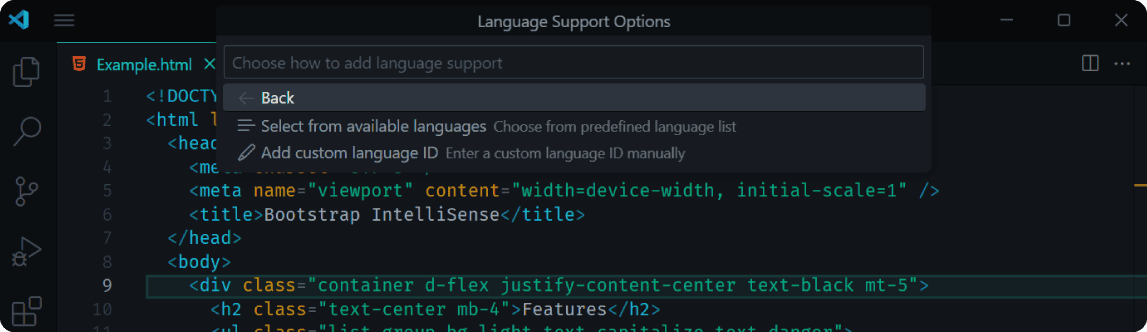
From predefined list:
- Select "Add language support" → "Select from available languages"
- Check/uncheck languages
- Press OK
Custom language ID:
- Select "Add custom language ID"
- Enter language identifier (e.g.,
astro,mdx) - Press Enter
Enable/Disable
- Toggle the whole extension (including completion) via Status Bar menu: "Enable/Disable completion" — maps to
enable - Toggle the hover preview independently via "Enable/Disable hover" (
enableHover, enabled by default) - Toggle inline editor color swatches via "Enable/Disable color preview" (
enableColorPreview, enabled by default) - Toggle automatic class sorting on save via "Enable/Disable sort on save" (
sortOnSave, disabled by default)
Runtime toggles take effect immediately — no reload required (except when reloading the class cache).
Reload / Clear Class Cache
If Bootstrap classes look outdated (for example after changing the version or your local CSS file), select "Reload / Clear Class Cache" from the Status Bar menu or run it from the Command Palette (Ctrl+Shift+P). This clears the cached Bootstrap classes, waits for color data to reload, and shows clearer feedback when the extension is disabled or no cache files exist.
Advanced Settings (settings.json)
Open: Ctrl+Shift+P → "Preferences: Open User Settings (JSON)"
"bootstrapIntelliSense": {
  "enable": true,
  "enableHover": true,
  "enableColorPreview": true,
  "sortOnSave": false,
  "bsVersion": "5.3.7",
  "useLocalFile": false,
  "cssFilePath": "",
  "languageSupport": ["html", "typescript", "typescriptreact", "angular"]
}
TIP
If bsVersion is not set, the extension falls back dynamically to the newest available Bootstrap version. Settings are saved to the scope where they are already defined (workspace folder / workspace / global) instead of always overwriting the global value.
Troubleshooting
| Problem | Solution |
|---|---|
| Status Bar button not visible | Check extension is installed; reload VS Code |
| Settings not applied | Reload VS Code; check JSON syntax |
| Local file not found | Verify cssFilePath; use relative paths |
| Language not working | Add via "Add language support"; check language ID |